

AI agents can already write your WordPress posts, update your pages, and manage your plugins. What they couldn’t do — until now — is handle your images: where they come from, how they get optimized, and where they need to go. That’s the gap LightSync Pro fills.
LightSync Pro changes that. It’s listed on the official MCP Registry as com.lightsyncpro/lsp — and it’s the first MCP server built specifically for WordPress media management. This post shows you exactly what that means in practice: what you can ask Claude to do, how to set it up, and why this matters for photographers, agencies, and anyone managing images across multiple sites.
What MCP Is (and Why It Matters for WordPress)
MCP — the Model Context Protocol — is an open standard that lets AI assistants like Claude connect to external systems and take real actions, not just generate text. Instead of copying and pasting between your AI tool and your website, an MCP connection lets Claude talk directly to WordPress on your behalf.
Automattic has built an official MCP adapter that’s being integrated into WordPress Core. WordPress.com offers MCP on all paid plans. The ecosystem is growing fast. But every current WordPress MCP implementation focuses on content: posts, pages, users, plugins, comments. Media has been completely overlooked.
That’s the gap LightSync Pro fills. While the Automattic MCP adapter handles content operations, LightSync Pro’s MCP server handles the entire image workflow — from cloud source to optimized, distributed asset. They’re additive, not competing. Together they give you full AI-accessible control over a WordPress site.
What You Can Actually Ask Claude to Do
Once LightSync Pro is connected as an MCP server in Claude, your media library becomes conversational. Here are real examples of what works today.
Sync from Lightroom, Dropbox, or Figma
"Show me my Lightroom albums"
"Sync the Product Shots album to WordPress and Shopify"
"What's new in my Dropbox since last week?"
"Import the unsynced Figma assets"
Claude browses your connected sources, runs a sync diff to show you what’s new, and imports on confirmation — running every image through AVIF/WebP optimization automatically. No dashboard, no file picker, no export step.
This is how the workflow actually looks in practice: a photographer finishes editing a client shoot in Lightroom, opens Claude, types “sync my latest client album to WordPress,” and it’s done. The images land in the WordPress media library, optimized and ready to use, without the photographer ever logging into wp-admin.
Fix Alt Text Across the Library
"How many images are missing alt text?"
"Generate alt text for all images missing it"
"Fix alt text on my 10 most recently imported images"
Claude runs a library health scan, identifies images without alt text, and batch-generates contextually accurate descriptions using AI — writing to each attachment automatically. A task that used to mean opening 50 individual media library entries now takes one sentence.
Run a Library Health Check
"Run a health check on my media library"
"Which images are still JPEG and haven't been optimized?"
"Find any broken image URLs on my site"
"Show me my SEO signal scores"
LightSync Pro’s MCP server exposes full library diagnostics — broken links, unoptimized formats, orphaned attachments, per-image SEO scoring across nine signal dimensions. Claude can surface issues, explain them, and fix them in the same conversation.
Distribute to Multiple Sites at Once
"Push this image to all my Hub sites"
"Distribute my latest Lightroom imports to karataggart.com and my Shopify store"
"Sync my entire library to all connected destinations"
Syncific Hub — LightSync Pro’s multi-site distribution layer — is fully accessible via MCP. Claude can push assets to independent WordPress sites, Shopify stores, HubSpot, and Contentful simultaneously. For agencies managing multiple client sites, this is where things get genuinely powerful: one conversation, every destination updated.
Connect Search Performance to Your Media Decisions
This is the capability that makes LightSync Pro’s MCP server genuinely different from anything else in the WordPress ecosystem — including the tools built by Automattic.
LightSync Pro connects directly to Google Search Console. That live performance data — impressions, clicks, CTR, average position, per-query intent — is exposed as MCP tools. Which means Claude can see it, reason about it, and act on it, without you opening a single dashboard.
"What search queries are driving traffic to my site right now?"
"Which pages have high impressions but almost no clicks?"
"Find content gaps — queries I'm ranking for but not converting"
"Which of my images are getting Google Search impressions?"
"My homepage has 200 impressions but a 1.5% CTR — what's wrong?"
"Cross-reference my media health issues with my worst-performing pages"
LightSync Pro classifies every query automatically — informational, commercial, navigational — and flags specific opportunity types: quick wins (ranking 8–20 with real volume), content gaps (impressions with zero clicks), and snippet problems (page 1 but CTR under 1%). Claude gets all of that context and can reason across it.
The real power is when you combine the two data streams. Claude can tell you that your Dropbox product photos page has 119 impressions but zero clicks and that the images on it are missing alt text and haven’t been optimized to AVIF — and it can fix both in the same conversation. That loop between search performance and media quality doesn’t exist anywhere else.
How to Set It Up (4 Steps)
Step 1: Install LightSync Pro on Your WordPress Site
Download and activate the LightSync Pro plugin. A Pro license is required to enable MCP access — you can start with the 14-day free trial, no credit card required.
Step 2: Copy Your Personal MCP URL
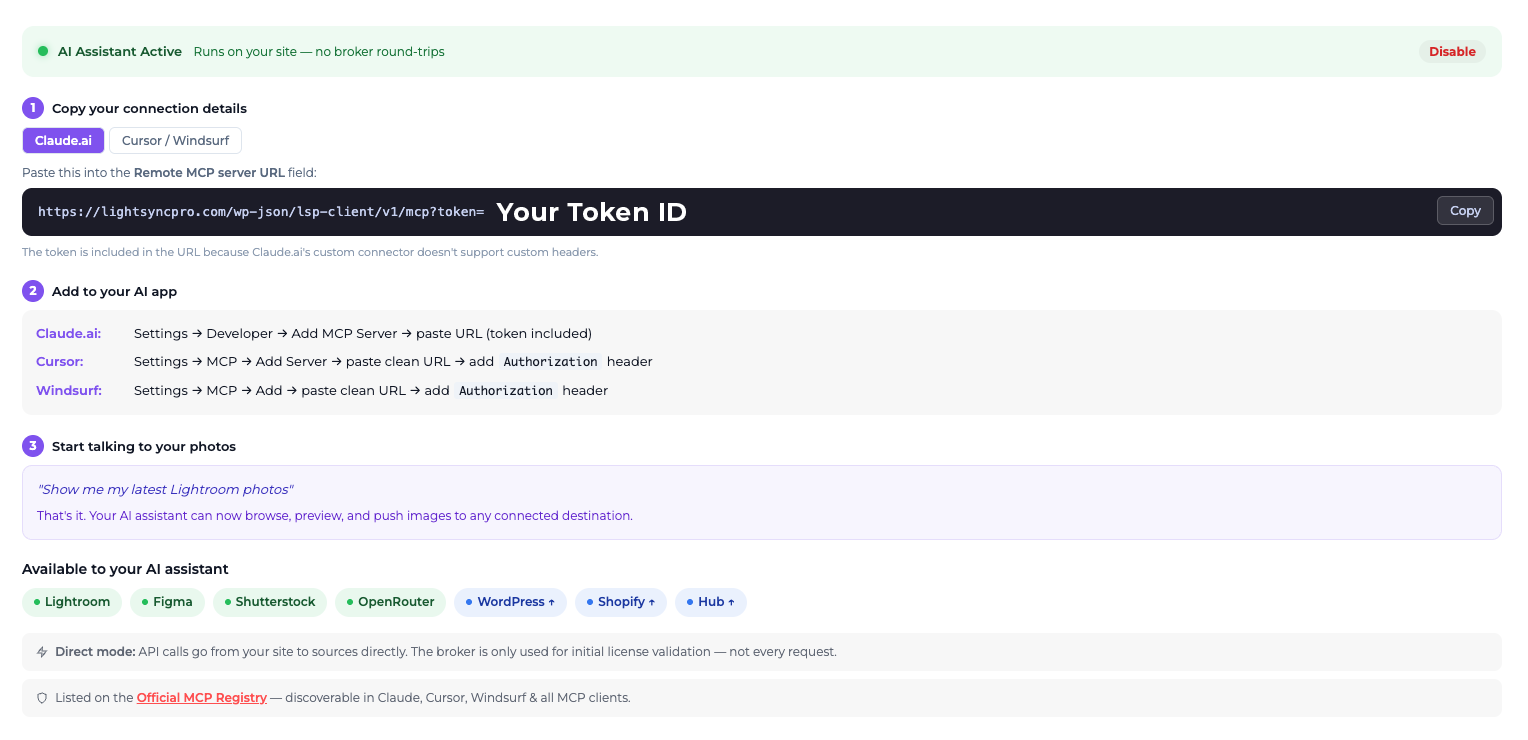
In your WordPress dashboard, navigate to LightSync Pro → Settings → AI Assistant. Your unique MCP URL is generated automatically after license activation. It looks like this:
https://yoursite.com/wp-json/lsp-client/v1/mcp?token=YOUR_TOKENThis URL is personal to your site and your license. It’s what Claude uses to authenticate and communicate with your WordPress installation.
Step 3: Add as a Custom Connector in Claude
In Claude, go to Settings → Connectors → Add custom connector and paste your MCP URL. MCP connectors are available on Claude Pro, Max, Team, and Enterprise plans. The connection uses LightSync Pro’s Streamable HTTP transport (protocol 2025-03-26) — Claude will confirm the tools are available immediately after connecting.
Step 4: Start Talking to Your Media Library
That’s it. Open a new conversation in Claude and start with something like “Check the status of my LightSync Pro connections” or “Run a health check on my media library.” Claude will orient itself to your setup and you can direct it from there.
LightSync Pro is also listed on the official MCP Registry as com.lightsyncpro/lsp, compatible with Claude, Cursor, Windsurf, and any MCP-enabled AI client.
Why This Is Different From Other WordPress MCP Servers
The WordPress MCP ecosystem is growing quickly — Automattic, InstaWP, WordPress.com, and several others have shipped MCP implementations. All of them focus on the same things: content publishing, plugin management, user administration. They’re excellent at that.
LightSync Pro’s MCP server doesn’t overlap with any of them. It operates in an entirely separate domain — the creative-to-CMS image pipeline. Where other servers let you ask “publish this post,” LightSync Pro lets you ask “sync my Lightroom album, optimize every image, generate alt text, and push it to all my sites.” That workflow didn’t exist in conversational form before.
The other distinction is source connectivity. LightSync Pro’s MCP server exposes five live cloud integrations — Adobe Lightroom, Figma, Dropbox, Canva, and Shutterstock — as tools Claude can use directly. It’s not just managing what’s already in WordPress; it’s controlling the entire upstream source-to-destination pipeline.
A Real Workflow: The Photographer’s Use Case
Here’s what this looks like for a photographer who shoots, edits in Lightroom, and publishes to both a WordPress portfolio and a Shopify store.
Before LightSync Pro MCP: finish editing → export from Lightroom → log into WordPress → upload → optimize manually → log into Shopify → upload again → write alt text for each image → go back and check nothing broke.
After: finish editing → open Claude → “sync my latest session to WordPress and Shopify.” Done. Every image optimized to AVIF, alt text generated, both destinations updated, sync logged.
The math on this compounds fast. A photographer doing this weekly saves hours per month. An agency doing this across dozens of client sites saves days.
Get Connected
LightSync Pro’s MCP server is live and in production. The 14-day free trial includes full MCP access — you can connect Claude and run your first sync within minutes of installing the plugin.
LightSync Pro is listed on the official MCP Registry as com.lightsyncpro/lsp. Compatible with Claude (Pro, Max, Team, Enterprise), Cursor, Windsurf, and any Streamable HTTP MCP client.